Pair once
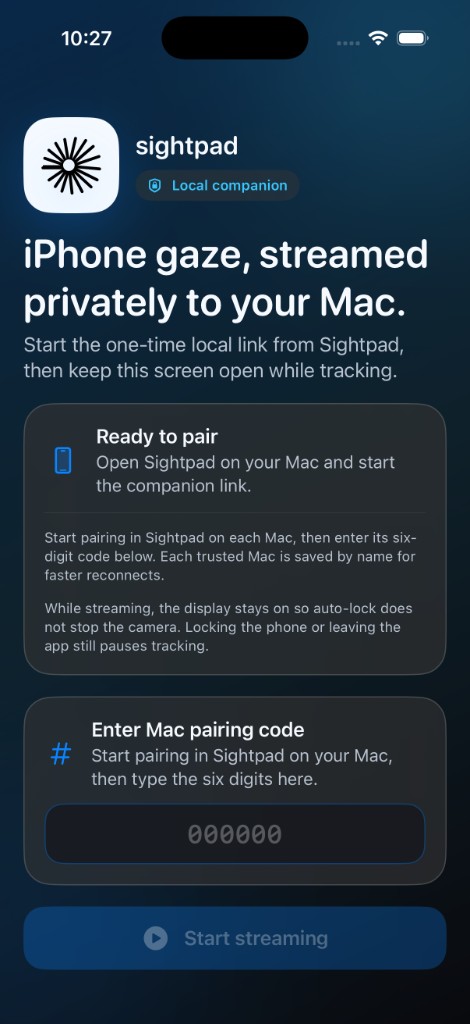
Install on Mac and iPhone. Enter the short code from the Mac app, accept Bluetooth on both sides, and grant camera on the phone plus Accessibility on the Mac when you want cursor assist.
 sightpad
Sightpad lets your Mac respond to where you're looking, so pointing feels natural again, without turning every move into trackpad choreography. A menu bar app on the Mac and a free companion on iPhone handle the rest after a quick pairing.
Put sightpad in the menu bar, pair the iPhone companion once, calibrate for your screen. After that the cursor stays closer to intent than habit. Technical details →
Install on Mac and iPhone. Enter the short code from the Mac app, accept Bluetooth on both sides, and grant camera on the phone plus Accessibility on the Mac when you want cursor assist.
Use Full calibration… from the menu bar the first time, then Quick recalibrate… for faster touch-ups. Profiles stay on your Mac per display; redo anytime from Settings.
Start from the menu bar: a gaze dot shows where you're looking; you can follow or snap the pointer toward targets. You still click with mouse, trackpad, or switch, or whatever you already use.
The free companion tracks your gaze on-device and streams lightweight samples to sightpad over Bluetooth LE (Wi‑Fi fallback optional). Your Mac handles calibration and pointer logic. See transport details.
Free, pairs over Bluetooth LE
Same workflow for everyone: pair, calibrate, track. On the Mac, enable Wi‑Fi Multipeer fallback in Settings → Backend only if Bluetooth LE is flaky. The companion picks it up automatically when BLE isn't carrying gaze writes yet.
Stripe checkout. Activate keys under Settings → License. Companion stays free; see license notes.
Sightpad subscription
Billed monthly, cancel anytime
$9.99/mo
One-time license
Single payment, limited-time offer
$29.99 once
USD, taxes at checkout if applicable. Installer: Sightpad.dmg. Beta sooner? Early access list.
Signed, notarized DMG. Paste the Keyforge license from your Stripe receipt under Settings when prompted.
Pre-alpha testers get builds before the wider beta. Leave your email for a download link when a slot opens.
Email only for the invite and one launch note. Nothing else.